Reset Password
Request a password reset email and set a new MonitoringDog password
Reset the password for an account that uses email/password sign-in. MonitoringDog sends a reset email, then allows you to set a new password from the reset link.
Before you begin
- Access to the email address on your MonitoringDog account.
- An account that uses email and password sign-in.
Open the password reset page
Go to Reset Password in the MonitoringDog portal.
You can also open it from Sign In in the MonitoringDog portal by clicking Forgot password? beside the Password field.
Request the reset email
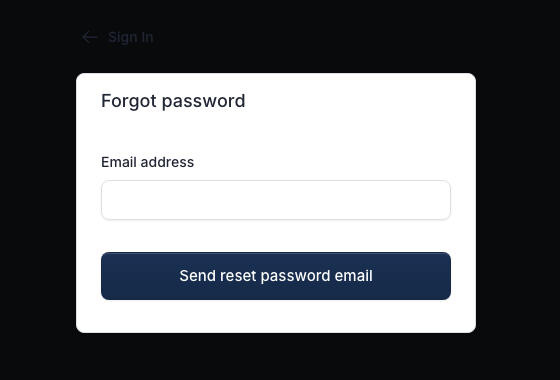
Enter your email in Email address, then click Send reset password email.
When the request succeeds, MonitoringDog shows the success message Email was sent!.
Open the reset link
Open the reset email and follow the link.
The link opens the reset form in MonitoringDog.
Set the new password
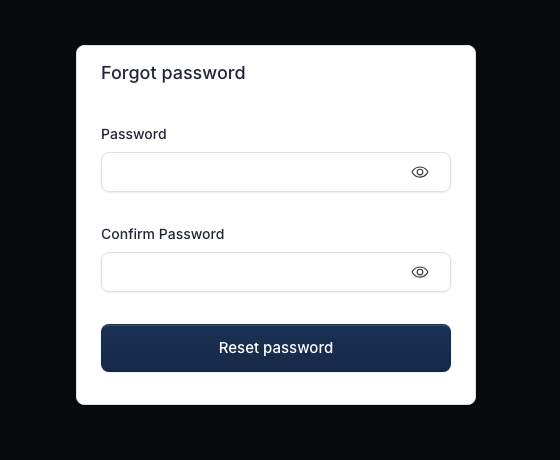
Enter the new value in Password and repeat it in Confirm Password.
Click Reset password.
When the reset succeeds, MonitoringDog shows Password reset successfully and returns you to the sign-in page.
Troubleshooting
| Issue | What to do |
|---|---|
| The email does not arrive | Check the address, spam folder, and mail rules, then request another reset email |
| The reset link does not work | Request a new reset email from Reset Password in the MonitoringDog portal |
| Confirm Password shows an error | Enter the same value in Password and Confirm Password |