Configure Webhooks and Integrations
Create outbound webhooks, test delivery, review logs, and connect Slack, Microsoft Teams, or Zapier
Use Integrations to send MonitoringDog events to external systems. Webhooks are best for developer-owned endpoints. Slack, Microsoft Teams, and Zapier are best for responder workflows.
Read Webhooks and Integrations first if you need the event model.
Before you begin
- Access to the MonitoringDog workspace and team.
- Permission to view or manage Integrations.
- An endpoint URL for webhooks, or admin access to the external platform you want to connect.
- An escalation severity that includes Integrations when integrations should receive incident alerts.
Open Integrations
Open the MonitoringDog portal and go to the team workspace.
Open Integrations from the dashboard navigation.
The page groups available integrations and active integrations.
Create a webhook
Open the Webhook integration.
Choose the webhook type:
| Type | Use when |
|---|---|
| CRUD Webhook | Your endpoint needs check lifecycle events |
| Incident Webhook | Your endpoint needs incident events |
Click Create Webhook.
In General Webhook Setting, enter:
| Field | What to enter |
|---|---|
| Webhook Name | A name for the destination or workflow |
| Webhook URL | The endpoint MonitoringDog should call |
| We make a request when | The check or incident events that should trigger delivery |
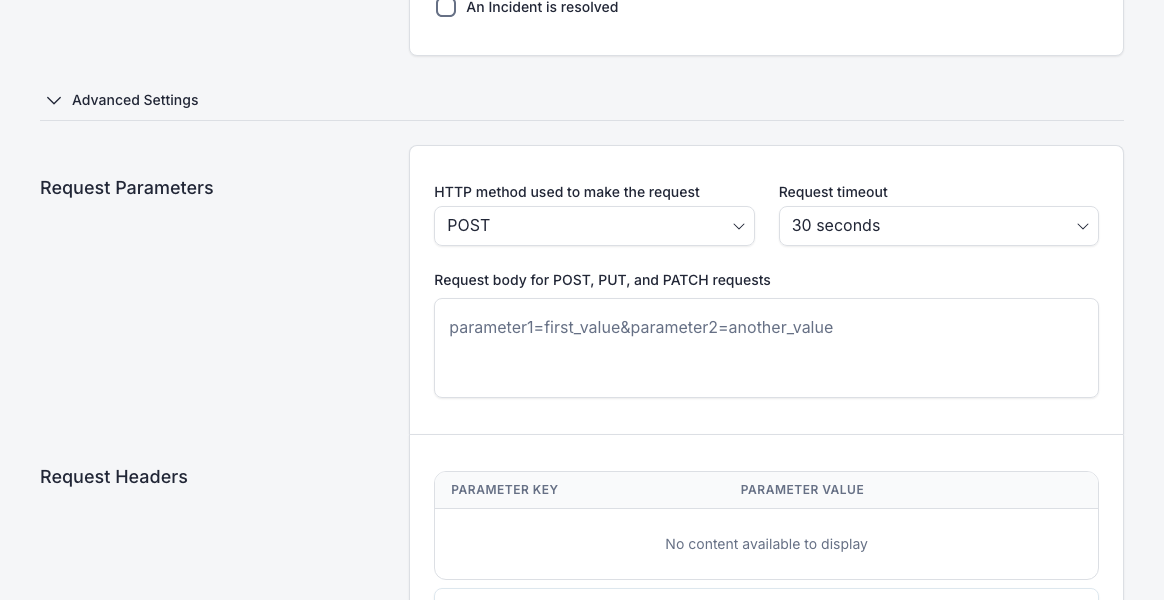
Configure advanced webhook settings
Open Advanced Settings when the default request is not enough.
Use Request Parameters to configure:
| Field | What it controls |
|---|---|
| HTTP method used to make the request | Request method, such as POST |
| Request timeout | How long MonitoringDog waits for the destination |
| Request body for POST, PUT, and PATCH requests | Body content sent to the destination |
Use Request Headers to add custom headers.
Click Create Webhook.
Test and review delivery
Open the webhook details page.
Click Send a Test Webhook to send a test event to the configured URL.
Review the delivery log table for:
| Column | What it shows |
|---|---|
| Sent at | When MonitoringDog sent the request |
| Request Size | Size of the outbound request |
| Request Method | HTTP method |
| Response Code | HTTP response code from the destination |
| Response Status | Success or failure |
| Detail | Request and response payload details |
Webhook logs can take a short time to update after a delivery attempt.
Connect Microsoft Teams
Open Microsoft Teams from Integrations.
In Microsoft Teams:
- Open Apps.
- Open Workflows.
- Choose Send webhook alerts to a channel.
- Select the team and channel where responders should receive incident notifications.
- Copy the generated webhook URL.
Back in MonitoringDog, enter Integration Name and Webhook URL.
Use Test to send a test notification before saving.
Enable Also send incident updates to integrations (Slack, Microsoft Teams) only when the channel should receive detailed incident timeline updates. This can create many messages during active escalation.
Connect Slack or Zapier
Use Slack when responders acknowledge and resolve incidents from Slack.
Use Zapier when a Zap should automate workflows from MonitoringDog events. Zapier configuration includes Block MonitoringDog's notification flow for teams that route all notifications through Zapier.
Review escalation policies after adding integrations. Integration notifications only help responders when severities and policies include the integration channel.
Troubleshooting
| Issue | What to do |
|---|---|
| A webhook test fails | Check the destination URL, method, timeout, headers, and request body |
| Webhook logs are empty after a test | Refresh after a short delay because logs can take time to update |
| Microsoft Teams test fails | Confirm the Teams workflow URL is copied from the target channel workflow |
| Integration messages are too noisy | Disable detailed incident updates and use the incident timeline for full detail |
| Integration alerts do not fire during escalation | Confirm the severity includes Integrations and the escalation policy uses that severity |
| You cannot create an integration | Ask a workspace admin to review your integration permissions |