Create and Manage Escalation Policies
Create severities, build escalation steps, choose contacts, and attach policies to monitoring resources
Create escalation policies to control who MonitoringDog alerts during incidents. Create severities first when you need custom notification channels for each escalation step.
Read Escalation Policies and Severities first if you need the mental model.
Before you begin
- Access to the MonitoringDog workspace and team.
- Permission to view or manage Escalation Policies.
- Team members or on-call schedules for the responders you want to alert.
- Connected integrations if a severity should notify Slack, Microsoft Teams, or other integration channels.
Open Escalation Policies
Open the MonitoringDog portal and go to the team workspace.
Open Escalation Policies from the dashboard navigation.
The page explains escalation policies and links to severity management when you need to configure notification methods.
Create a severity
Open the Severity view from Escalation Policies.
Click Create Severity.
In Create Severity, enter a Name and select the alert channels for Alerts.
Common channels include:
| Alert | Use when |
|---|---|
| Responders should receive email alerts | |
| Push notification | Responders should receive mobile push alerts |
| Integrations | Connected integrations should receive incident notifications |
Click Submit.
Create an escalation policy
Open Escalation Policies, then click Create Escalation.
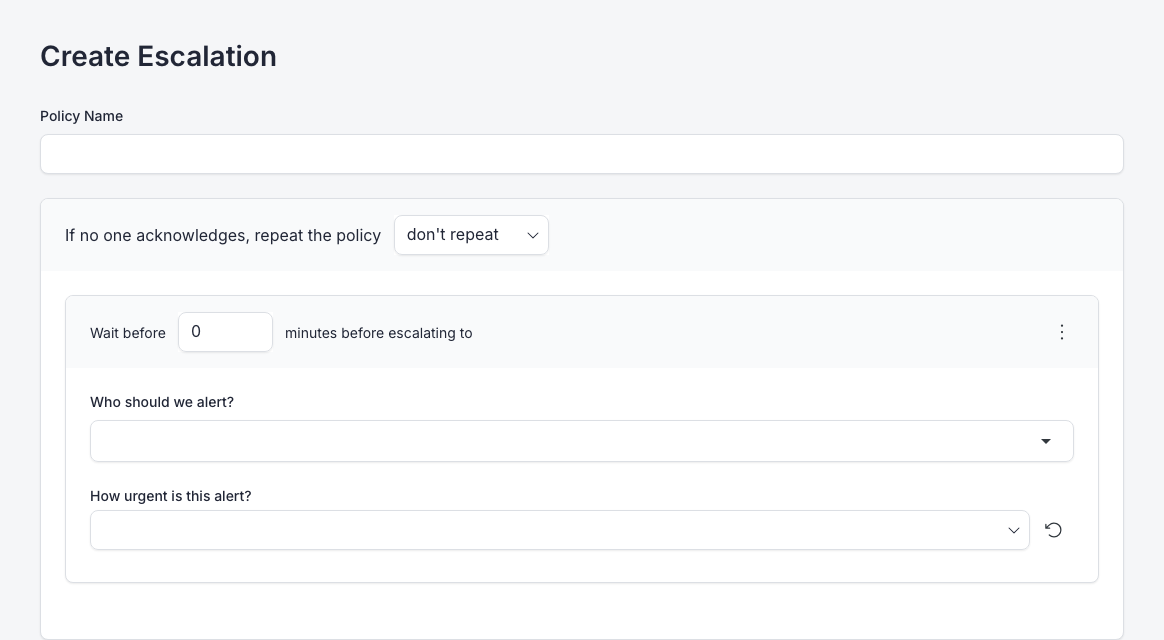
Enter a Policy Name.
Use the repeat controls to decide whether MonitoringDog repeats the policy when nobody acknowledges the incident.
| Control | What it changes |
|---|---|
| If no one acknowledges, repeat the policy | Number of repeat runs |
| Repeat delay (the "after" field) | Delay before the policy repeats |
Configure policy steps
Each policy starts with one step. Configure the step before adding more.
For each step:
- Set Wait before to control the delay before the step runs.
- Choose Who should we alert?.
- Choose How urgent is this alert?.
The contact picker can include:
| Contact | What it means |
|---|---|
| Current on-call person | MonitoringDog uses the current on-call schedule |
| Entire team | MonitoringDog alerts the full team |
| Team member | MonitoringDog alerts the selected member |
Click Add another step when the policy needs a later escalation step.
Click Create Escalation to save the policy.
Use the policy
After the policy exists, select it when you create or edit:
- Checks
- Custom incident services
The policy runs when MonitoringDog opens an incident for that resource.
Troubleshooting
| Issue | What to do |
|---|---|
| No severity appears in a policy step | Create a severity first, then refresh the severity picker |
| Current on-call person does not alert anyone | Create or review the on-call schedule for the team |
| Integration alerts do not arrive | Confirm the integration exists and the severity includes Integrations |
| You cannot create or edit policies | Ask a workspace admin to review your Escalation Policies permissions |