View and Investigate Incidents
Review incident status, source details, acknowledgement state, and timeline events
Use Incidents to review active and historical incidents for the current team. The incident details page shows what triggered the incident, whether it was acknowledged, and the event timeline.
Read Incidents first if you need the lifecycle, timeline, or terminal resolution behavior.
Before you begin
- Access to the MonitoringDog workspace and team where the incident belongs.
- Permission to view incidents or the related check or custom incident.
- A check or custom incident that has generated incident data.
Open Incidents
Open the MonitoringDog portal and go to the team workspace.
Open Incidents from the dashboard navigation.
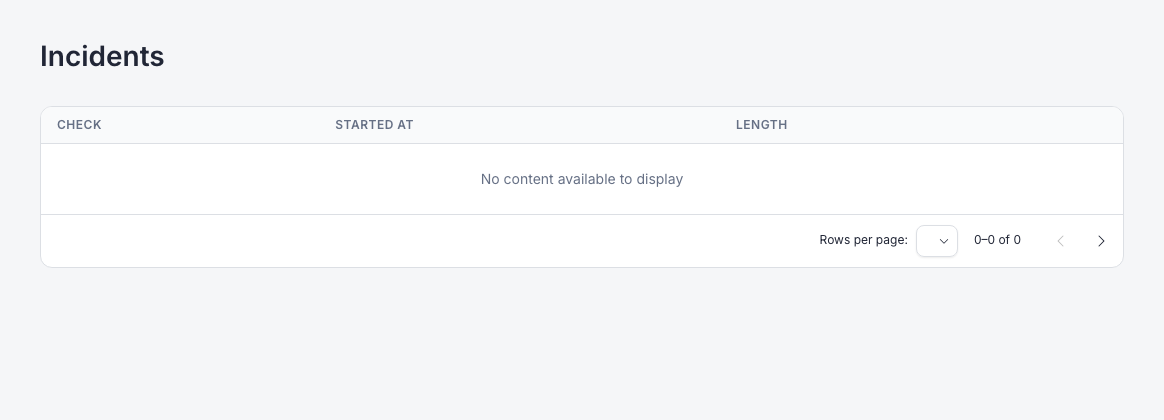
The incidents list shows each incident with:
| Column | What it shows |
|---|---|
| Check | Incident title, source status icon, and cause |
| Started at | When the incident started |
| Length | Incident duration, or the current status if the incident is still active |
| Actions | View or delete actions when available |
You can also reach a filtered incident list from a check or custom incident details page.
Open an incident
Select an incident from the list.
The incident details page shows:
| Area | What to review |
|---|---|
| Header | Incident title and status |
| Actions | Link back to the related check or custom incident |
| Acknowledgement | Whether the incident has been acknowledged and by whom |
| Details | Cause, triggering requester, start time, duration, and checked URL or custom incident description |
| Timeline | Detection, recovery, notification, acknowledgement, escalation, and resolution events |
Read the timeline
Use the timeline to understand the order of events.
| Timeline entry | What it means |
|---|---|
| Incident started | MonitoringDog opened the incident |
| Monitor recovered | The monitored target started passing again |
| Waiting before auto-resolving | MonitoringDog is applying the recovery period before closing the incident |
| Incident reappeared | The condition failed again before resolution |
| Notification entries | MonitoringDog sent email, push, Slack, Microsoft Teams, Discord, or webhook notifications |
| Incident acknowledged by | A responder accepted ownership |
| Incident resolved automatically | MonitoringDog resolved the incident after confirmed recovery |
| Incident resolved manually | A responder or manual flow resolved the incident |
Open the source resource
Use the source action on the incident details page to open the related resource:
| Incident source | Destination |
|---|---|
| Check incident | The check details page |
| Custom incident | The custom incident details page |
Review the source resource when you need its monitoring configuration, escalation policy, or related incident history.
Troubleshooting
| Issue | What to do |
|---|---|
| The incidents list is empty | Confirm the selected team has checks or custom incidents with incident history |
| You cannot open an incident | Ask a workspace admin to review your incident, check, or custom incident permissions |
| The incident did not resolve immediately after recovery | Check the related check's Recover Period and read How Checks Work |
| The timeline does not show a recent webhook or notification yet | Refresh after the delivery log or event processor finishes recording the event |