Create and Manage Checks
Create a check, test the configuration, and manage its monitoring state
Create a check to monitor an HTTP or HTTPS API endpoint and its response condition from selected locations. A check runs on a schedule, records availability data, and can open incidents through an escalation policy.
Read How Checks Work first if you need the status lifecycle, confirmation period, recovery period, or maintenance behavior.
Before you begin
- Access to the MonitoringDog workspace and team where the check belongs.
- Permission to manage checks in that team.
- A target HTTP or HTTPS URL to monitor.
- An escalation policy, or the details needed to create one while you create the check.
Open Check Management
Open the MonitoringDog portal and go to the team workspace.
Open Check Management, then click Add.
MonitoringDog opens Create Check.
Choose what to monitor
In What to monitor?, choose the condition for Alert us when.
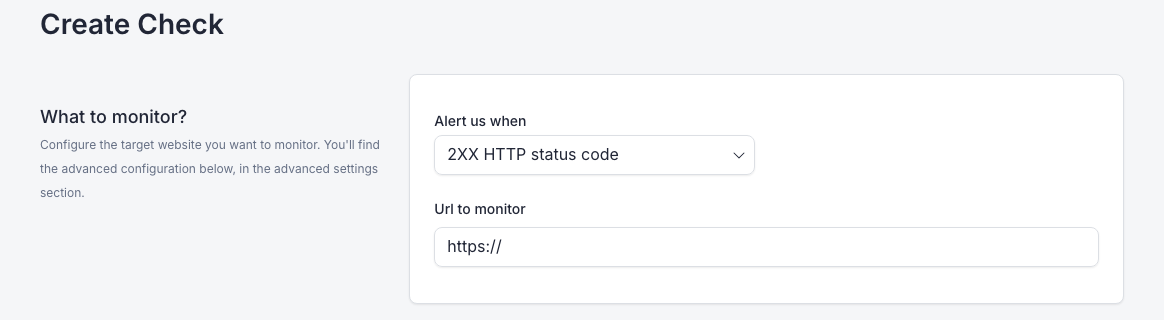
The right column describes the passing state for each option.
| Option | The check is healthy when |
|---|---|
| 2XX HTTP status code | The service is healthy when it returns any 2xx response |
| URL returns HTTP status other than | The service is healthy only when it returns one of the selected status codes |
| URL doesn't contain a keyword | The response body includes the keyword you enter |
| URL contains a keyword | The response body does not include the keyword you enter |
Enter the target in Url to monitor.
Some check types show additional fields:
| Field | When it appears |
|---|---|
| Expected HTTP status codes | The check compares the response status with selected codes |
| Keyword to find on the page | The check looks for the presence or absence of a keyword |
Configure escalation
In Escalation Policy, choose an existing policy or switch to the custom escalation policy form.

The check uses the escalation policy when MonitoringDog confirms an incident for the check.
Review advanced settings
Open Advanced Settings when the default monitoring behavior is not enough.
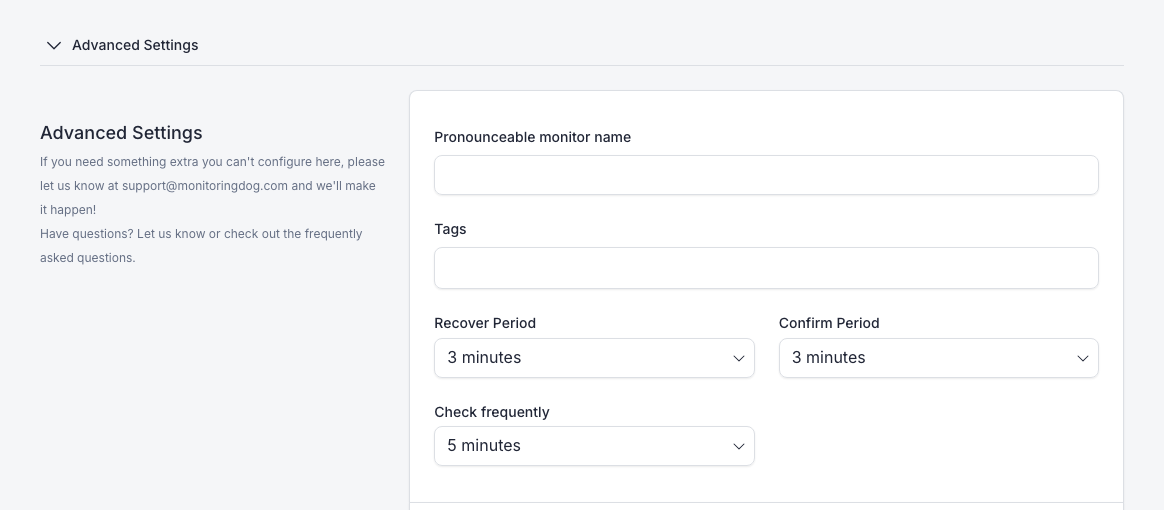
| Setting | Use when |
|---|---|
| Pronounceable monitor name | You want a human-readable name instead of relying on the URL |
| Tags | You want to group or search checks by labels |
| Recover Period | The service must stay healthy for a period before MonitoringDog resolves the incident |
| Confirm Period | The service must stay unhealthy for a period before MonitoringDog opens the incident |
| Check frequently | You want to change the interval between scheduled checks |
Configure request settings
Use Request Parameters when the check needs a specific HTTP method, timeout, request body, or redirect behavior.
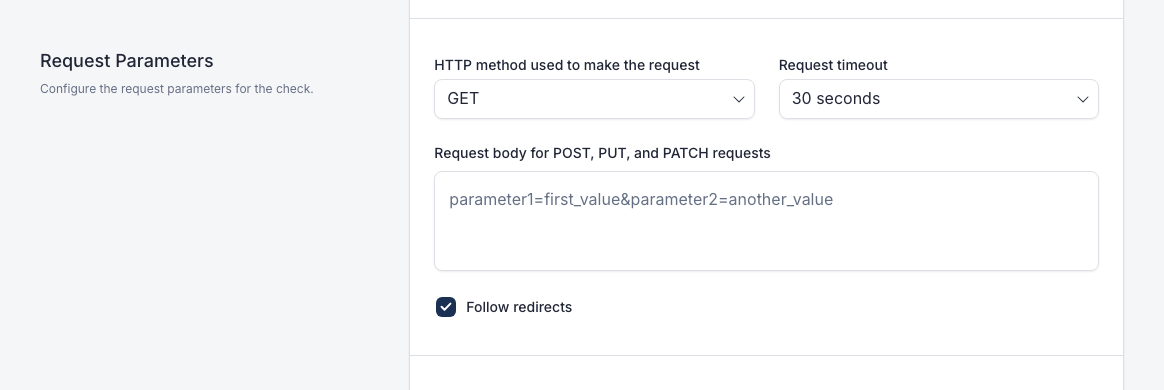
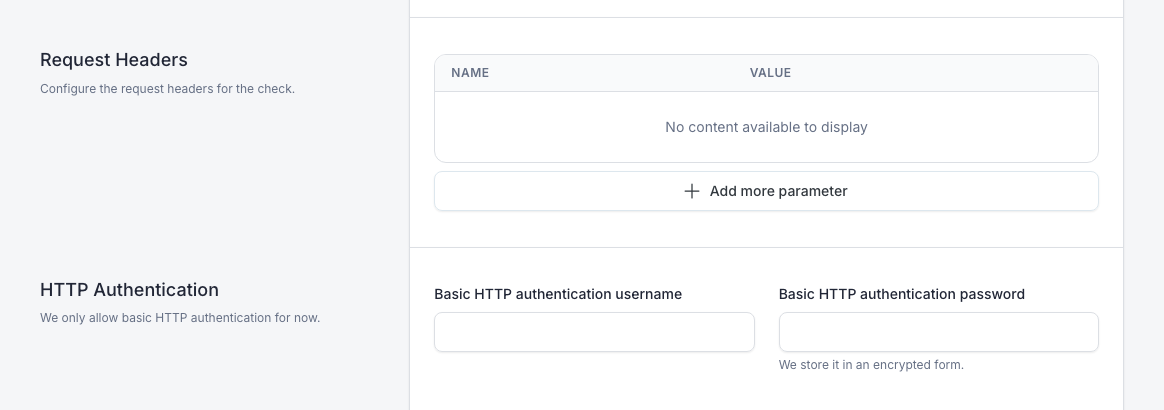
Use Request Headers when the target requires custom headers. Use HTTP Authentication when the target requires basic HTTP authentication.
Configure maintenance and locations
Use Maintenance when monitoring should pause during a scheduled maintenance window.
Choose the locations the check runs from.
Test and create the check
Click Test Check.
If the test passes, MonitoringDog shows Status check passed.

Click Create Check.
After create succeeds
When creation succeeds, MonitoringDog shows Check created successfully and returns you to Check Management.
The new check appears in the check list. Select the check row to open its details page.
If this is the first check in the workspace onboarding list, MonitoringDog also marks Create your first check as complete.
MonitoringDog creates the check only after it can schedule monitoring with the monitoring service. If scheduling cannot complete, MonitoringDog keeps you on Create Check and reports that the check could not be scheduled. Retry after the monitoring service is reachable.
Confirm the check is running
The check details page shows:
| Area | What it shows |
|---|---|
| Header | Check URL, name, and current status |
| Actions | Pause, Incidents, and Configure |
| Details | Check configuration and related incident data |
| Response time chart | Response time measurements by location |
| Availability table | Availability, downtime, incidents, and longest incident by time period |
Review the header status first.
| Status | What to expect after creation |
|---|---|
| Pending | MonitoringDog is waiting for the first scheduled result |
| Up | The check has a passing result and monitoring is running |
| Down | The check has a confirmed failing result and may have an incident |
Use Incidents to open incidents associated with the check. Use Configure to edit the check settings. Use Pause when the target should stop active monitoring.
Manage an existing check
Use the action menu or check details page to manage existing checks.
| Action | What it does |
|---|---|
| Configure | Opens the edit form for check settings |
| Pause | Stops active monitoring for the check |
| Resume | Restarts monitoring for a paused check |
| Incidents | Opens incidents associated with the check |
| Delete | Removes the check |
The UI shows management actions only to users with permission to manage checks.
Troubleshooting
| Issue | What to do |
|---|---|
| Create Check is disabled | Change at least one form value, complete required fields, and confirm your account has permission to manage checks |
| Test Check fails | Check the target URL, method, keyword, expected status codes, headers, and authentication values |
| MonitoringDog sends you to billing | Your organization may have reached the current plan's check limit |
| The check enters Maintenance | Review the maintenance days, time window, and timezone |
| A failure does not open an incident immediately | Check the configured Confirm Period and read How Checks Work |
| Recovery does not resolve immediately | Check the configured Recover Period |