Configure On-Call Schedules
Search current coverage, create on-call events, configure recurrence, and update schedules
Use Who's on-call? to review coverage and configure on-call schedule events for escalation policies.
Read On-Call Schedules first if you need to understand recurrence and current on-call lookup.
Before you begin
- Access to the MonitoringDog workspace and team.
- Permission to view Team Settings to review schedules.
- Permission to manage Team Settings to create, update, or delete schedules.
- Team members added to the team.
Open Who's on-call
Open the MonitoringDog portal and go to the team workspace.
Open Who's on-call? from the dashboard navigation.
The page shows:
| Area | What it shows |
|---|---|
| Upcoming on-calls | Upcoming scheduled coverage |
| Who's on-call? | A search control for a selected date and time |
Choose a future date and time, then click Search to see who is on-call for that time.
Open schedule configuration
Click Configure.
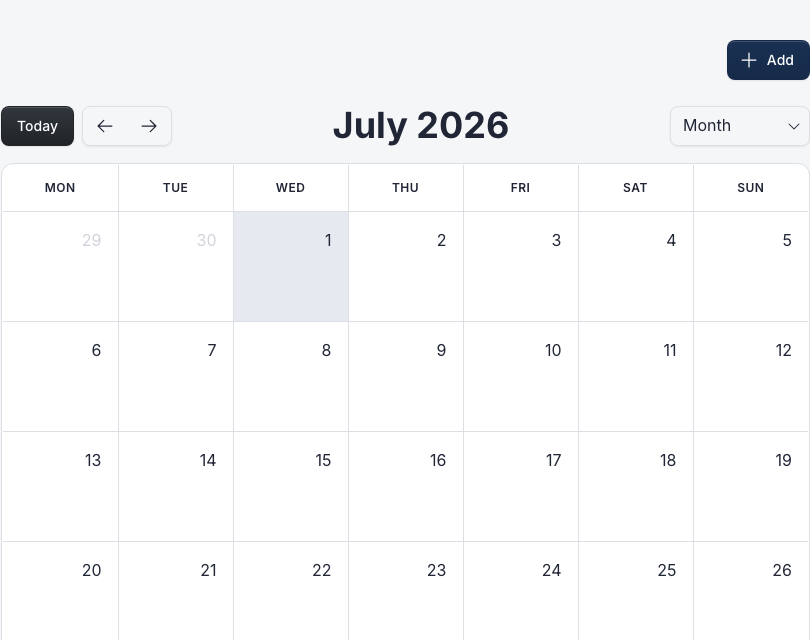
MonitoringDog opens the schedule calendar. The left side lists team members, and the calendar shows existing on-call events.
Click Add or select a calendar slot to create an event.
Create an event
In Create Event, select Members.
Set Start Date and End Date.
Use All Day when the event should cover full days instead of specific times.
Click Create for a one-time event.
Create a recurring event
Turn on Repeat?.
Configure the recurrence:
| Field | What to choose |
|---|---|
| Repeat every | Interval number |
| Frequency | Day, Week, Month, or Year |
| Repeat on | Weekdays for weekly recurrence |
| Ends | Never, a specific date, or a number of occurrences |
Click Create.
Update or delete an event
Open an event from the calendar.
Update the members, dates, all-day setting, or recurrence settings, then click Update.
Use Delete to remove the event from the schedule.
Use on-call in escalation
Open an escalation policy and choose Current on-call person in Who should we alert?.
MonitoringDog uses the on-call schedule when that escalation step runs.
Troubleshooting
| Issue | What to do |
|---|---|
| No on-call found appears | Create an event that covers the selected date and time |
| A member is missing from the member picker | Add the person to the team first |
| The end date cannot be selected | Choose an end date after the start date |
| Weekly recurrence does not match the intended days | Review Repeat on before saving |
| Escalation does not alert the expected person | Search the same date and time in Who's on-call? to verify coverage |