Create and Manage Custom Incidents
Create a custom incident service, attach escalation, copy its trigger URL, and review related incidents
Create a custom incident service when an external system should trigger MonitoringDog incidents through an endpoint instead of a scheduled check.
Read Custom Incidents first if you need to understand how custom incidents differ from checks.
Before you begin
- Access to the MonitoringDog workspace and team.
- Permission to manage checks in that team.
- An escalation policy, or the details needed to create one from the form.
- A team or organization API token for the external system that sends trigger requests.
Open Custom Incident Management
Open the MonitoringDog portal and go to the team workspace.
Open Custom Incident Management from the dashboard navigation.
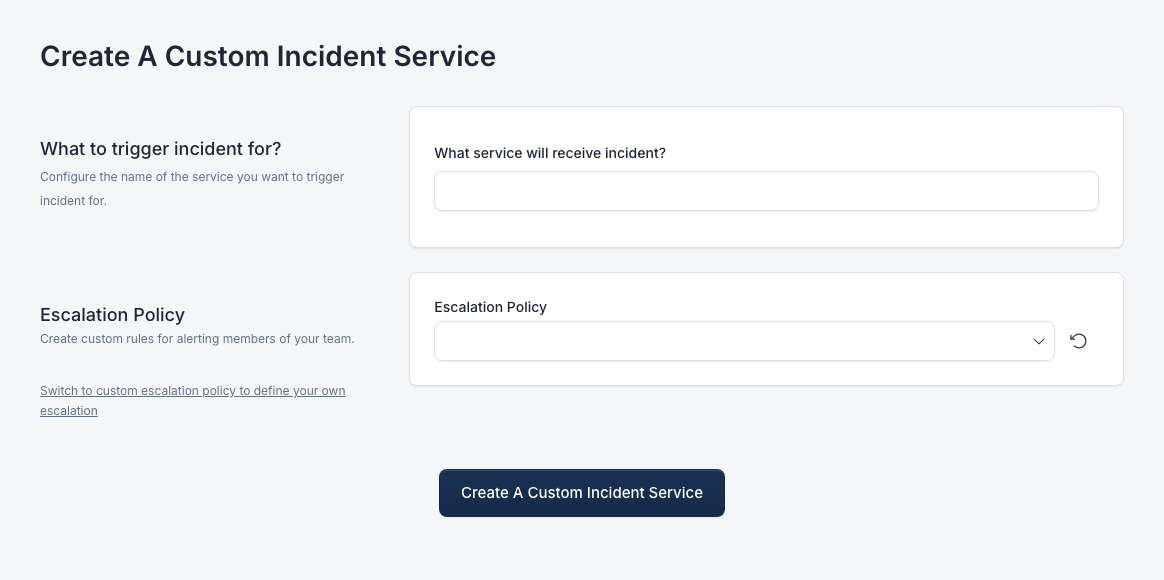
Click Add to open Create A Custom Incident Service.
Define the service
In What to trigger incident for?, enter What service will receive incident?.
Use a name responders can recognize in alerts and incident lists, such as a worker queue, payment flow, data pipeline, or internal health check.
Configure escalation
In Escalation Policy, choose an existing policy.
Use Switch to custom escalation policy to define your own escalation when you need to create a policy while creating the custom incident service.
Click Create A Custom Incident Service.
Copy the trigger URL
Open the custom incident service details page.
The Call this URL section shows the trigger URL for that service. Click Copy URL.
Configure your external system to send a POST request to the copied URL with a team or organization auth token.
Use the URL shown in the current service details page. Do not hard-code an example URL from documentation or screenshots.
Review related incidents
Open the custom incident service details page and click Incidents.
MonitoringDog opens the incident list filtered to that custom incident service. Open an incident to review the source details, requester information, and timeline.
Edit or delete a service
Use Configure or the edit action to change the service name or escalation policy.
Use delete only when the custom incident service is no longer needed. Recreate downstream trigger configuration if you delete and create a replacement service.
Troubleshooting
| Issue | What to do |
|---|---|
| The form cannot save | Confirm the service name and escalation policy are set |
| The external trigger is rejected | Check that the request uses the copied URL and a valid team or organization API token |
| Responders are not notified | Review the selected escalation policy and its severities |
| The service details page shows a different URL after recreation | Copy the new URL and update the external system |
| You cannot create or edit services | Ask a workspace admin to review your check management permissions |