Manage Teams and Roles
Create teams, invite members, update roles, and manage team access
Manage teams when different groups need their own checks, incidents, integrations, escalation policies, and settings. Team roles control what each member can view or manage inside the workspace.
Read Teams, Roles, and Permissions first if you need the permission model, invitation lifecycle, or plan-limit behavior.
Before you begin
- Access to the MonitoringDog workspace and organization.
- Permission to view Teams.
- Permission to manage teams, team members, or roles for the action you want to complete.
- A role to assign before you invite a member.
Open Teams
Open the MonitoringDog portal and go to the workspace.
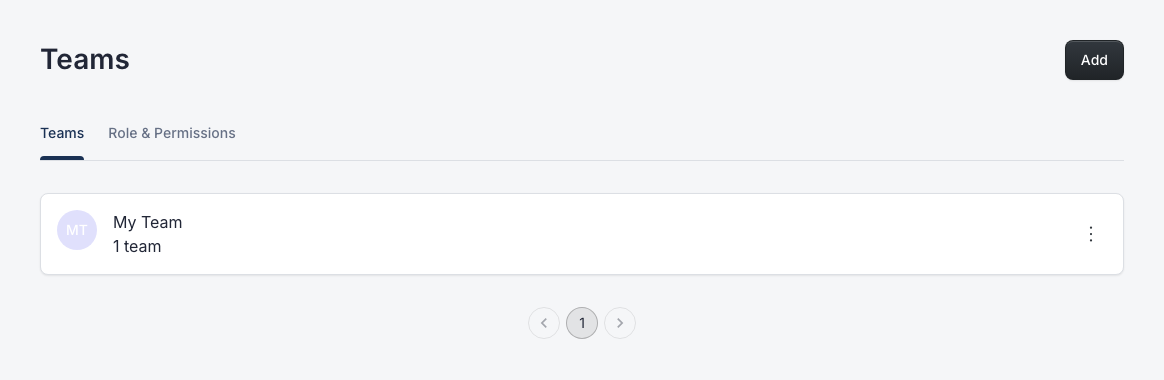
Open Teams from the dashboard navigation.
The page opens the Teams tab. Use the tabs to switch between Teams and Role & Permissions.
Create a team
Click Add.
In Add a new Team, enter a team Name, then click Save.
MonitoringDog creates the team, adds you to it with the default Admin role, and returns the team to the Teams list.
Open a team
Select a team from the Teams list.
The team details page has three tabs:
| Tab | Use it to |
|---|---|
| Members | Review members, change roles, or remove a member from the team |
| Invitations | Review, resend, or delete pending invitations |
| Settings | Rename the team |

Invite a member
Click Invite User.
In Invite a new member, enter Input email to invite to your team and choose a Role.
Click Send invitation.
MonitoringDog sends an invitation email. Pending invitations appear in the Invitations tab with Email, Role, and Status.
Manage invitations
Open the Invitations tab.
Use Resend to send a new invitation email. Use Delete to cancel an invitation.
Resending an invitation changes its status to Resent and gives the invitee a new three-day acceptance window.
Change a member role
Open the Members tab.
Open the member action menu, then click Change Role.
Choose a new Role, then click Save.
MonitoringDog updates the member's role for this team.
Remove a member
Open the Members tab.
Open the member action menu, then click Delete.
Confirm Delete User to remove the member from the team.
Rename a team
Open the Settings tab.
Edit Edit team name, then click Save.
MonitoringDog updates the team name after the form changes.
Delete a team
Open the Teams list.
Open the team action menu, then click Delete.
Confirm Delete Team to remove the team.
Create a role
Open Role & Permissions.
Click Create.
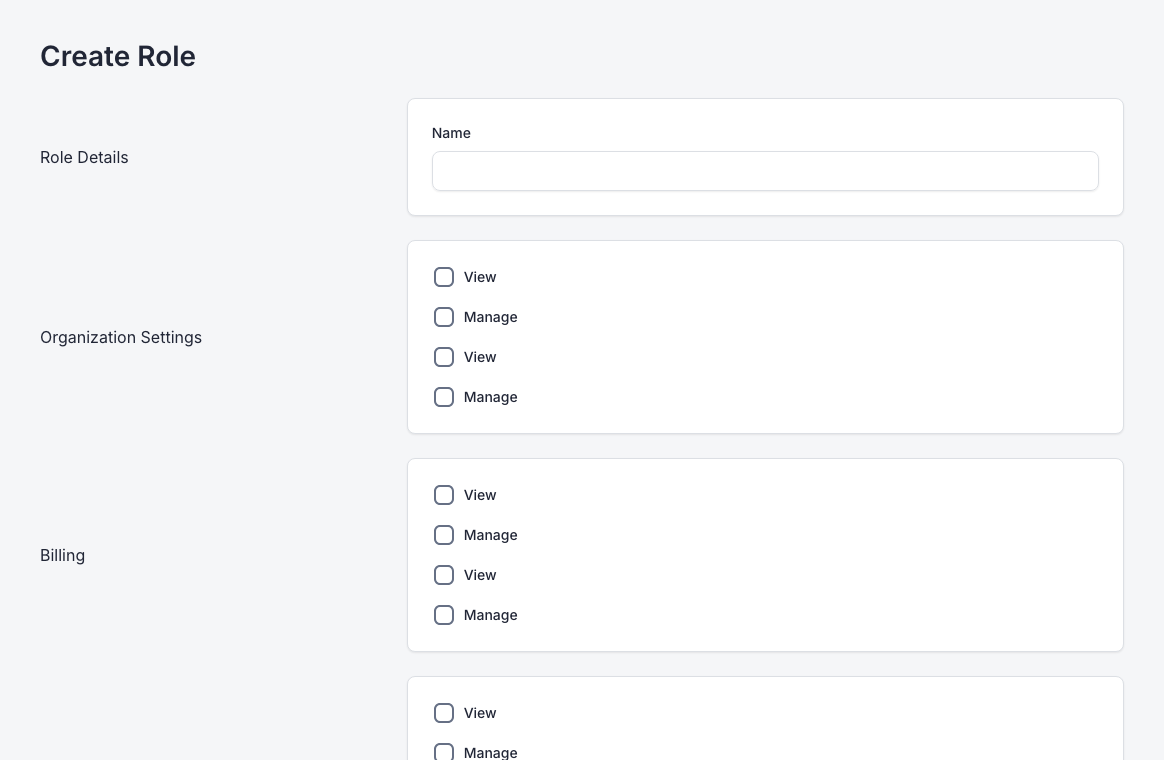
In Create Role, enter a Name.
Select the permissions the role should grant. Each permission belongs to a scope, such as Team Members, Checks, or Escalation Policies, and can grant View or Manage access.
Click Submit.
MonitoringDog creates the role and returns you to Role & Permissions.
Update or delete a role
Open Role & Permissions.
Select a role name to edit it. Update the Name or selected permissions, then click Update.
Use Delete from the role action menu to remove a non-default role.
Default role editing and deletion are disabled.
Verify access
After changing team membership or role permissions, ask the member to sign in again if their open session still shows old access.
The dashboard shows Access Denied when the active session does not have permission for a protected page.
Troubleshooting
| Issue | What to do |
|---|---|
| Access Denied appears | Ask a workspace admin to review your role in Teams or Role & Permissions |
| Add or Invite User shows a plan warning | Review Billing & Usage because the organization may have reached a team or member limit |
| MonitoringDog sends you to billing after saving | The backend rejected the team or member action because the organization is over the current plan limit |
| The invitation cannot be sent | Check the email format, selected role, and whether the same email already has an active invitation for the team |
| The invitee sees an expired invitation error | Delete the old invitation and send a new one, or use Resend to start a new acceptance window |
| A role cannot be edited | Default roles are locked in the role form |